

Importing
1) Open Files

Tap + in the library, then From Files.
2) Choose a folder
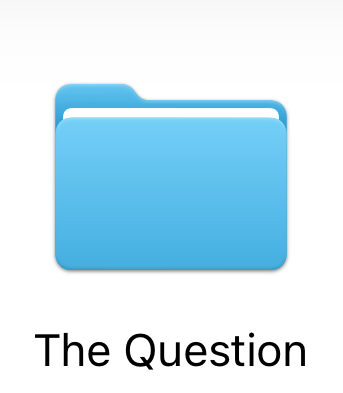
Open the complete game folder—The Question in this example.
3) Import the folder

With the game folder open, tap Open. Keep its scripts and resources together.
Or choose a ZIP
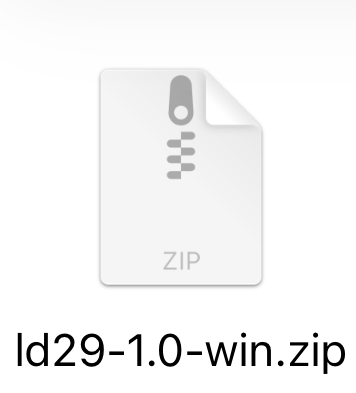
Tap a game ZIP instead. ZScripter extracts it and detects the engine automatically.
Choose a game folder, archive, or executable. The format is detected automatically.
Tap + to choose From Files, Web Importer, or Import Help. From Files imports one folder or file. Web Importer takes several folders, archives and installers at once from a browser on a computer on the same Wi-Fi. Archives and installers can also be opened in ZScripter from the Files app or the share sheet. Archives and installers inside a selection are opened automatically. For split RAR or 7z archives, keep every part together and choose the containing folder; in Web Importer, select all parts together.
Folder Import
NScripter Family
NScripter / ONScripter / ONScripter-EN; legacy names also work with PONScripter. Keep scripts and resources together. nscript.___: companion executable key table or valid generated key sidecar required.
0.txt | 00.utf |
00.txt | 00.utf.txt |
0.u | nscr_sec.dat |
00.u | nscript.___ |
0.utf | nscript.dat |
0.utf.txt | pscript.dat |
Game/
├── 0.txt
├── arc.nsa
├── arc1.nsa
└── default.ttf
Game/
├── 0.utf
├── pscript.dat
└── arc.sar
PONScripter
0.u | 0.utf.txt |
00.u | 00.utf.txt |
0.utf | pscript.dat |
00.utf | patch/ |
Same roots for Original / Mion (2011), Sekai Project Steam, Witch Hunt 1x/2x, and 07th-Mod v3/v4. UTF-8 scripts; legacy names also accepted. Preserve patch/ for profiles with patch-first lookup.
ONScripter-RU
script.file |
ons.cfg |
default.cfg |
game-script/*.file |
game-script/*.txt |
game_script/*.file |
game_script/*.txt |
Default: script.file. Selector: game-script / game_script in ons.cfg, otherwise default.cfg. Selected scripts: .file (validated RU header) or .txt. Preserve relative paths and matching script-name.cfg overlays.
Umineko Project
umiproj_31.12.19.7z.001–012 |
umineko-main-scripts_r4058.zip |
extra_01.12.24.zip |
Put all 12 resource parts, the main scripts ZIP, and the resource update ZIP in one folder; the Witch Hunt scripts ZIP is optional. Select that folder in From Files and enter your archive password when asked. ZScripter assembles the game directly, without copying the download archives into its game library. Keep at least 13.5 GB free in app storage.
OnscripterYuri
| GBK |
| Shift-JIS |
| UTF-8 |
onscript.nt2 |
onscript.nt3 |
Classic NScripter / ONScripter roots. Profiles: GBK, Shift-JIS, UTF-8. Decoder: onscript.nt2 / onscript.nt3. NT2/NT3 alone do not trigger automatic folder discovery. Preserve the distribution; select the matching profile.
NSA / NS2 / SAR
*.nsa |
*.ns2 |
*.sar |
arc.___ |
arc1.___ … arc99.___ |
Resources inside a game root, not standalone imports. NSA: arc.nsa, arc1.nsa–arc99.nsa. NS2: 00.ns2–99.ns2. SAR: arc.sar. Key-table archives: arc.___, arc1.___–arc99.___. Preserve names and loose resources.
Artemis
Select the complete game root containing system.ini and its configured BOOT script. Keep scripts, images, audio and relative paths intact. A script or executable alone is insufficient; packed PFS roots are described under Engine Package Import.
system.ini (BOOT=) |
Game/
├── system.ini
├── boot.iet
├── script/
├── image/
└── sound/
CatSystem2
Select the complete game folder containing scene.int (or a scene folder of .cst files) and config.int or startup.xml. Keep every .int archive, the game executable and loose folders together: ZScripter reads archive keys from the executable's resources but never runs it.
scene.int | scene/*.cst |
config.int | config/startup.xml |
Game/
├── Game.exe
├── scene.int
├── config.int
├── image.int
├── bgm.int
├── voice.int
└── movie/
RealLive
Gameexe.ini + Seen.txt at the root or in an immediate KINETICDATA/REALLIVEDATA folder; names are case-insensitive. Keep all referenced resources and relative paths. Wrapper-only .ezk/.ezs packages are unsupported.
Gameexe.ini + Seen.txt |
KINETICDATA/ |
REALLIVEDATA/ |
Game/
├── Gameexe.ini
├── Seen.txt
├── G00/
├── BGM/
├── WAV/
└── KOE/
Game/
└── KINETICDATA/ | REALLIVEDATA/
    ├── Gameexe.ini
    ├── Seen.txt
    └── …
SiglusEngine
Select the complete game root containing Scene.pck and Gameexe.dat (or Gameexe.ini); names are case-insensitive. Keep every resource folder and relative path intact.
Scene.pck |
Gameexe.dat |
Game/
├── Scene.pck
├── Gameexe.dat
├── g00/
├── bgm/
├── koe/
├── mov/
└── wav/
AVG32
Gameexe.ini plus a PACL SEEN.TXT archive or loose SEENnnn.TXT scenarios, at the root, in DAT/ or in the #FOLDNAME.TXT folder. Keep the original AVG32 executable: its file identifies the save format revision.
Gameexe.ini + SEEN.TXT |
Gameexe.ini + SEENnnn.TXT |
Game/
├── Gameexe.ini
├── AVG3217M.EXE
├── SEEN.TXT
├── PDT/
├── KOE/
└── WAV/
UK2
AyPio PC-98 releases: UK2.CFG with UK2 TEXT .MES scripts, or Half-Pipe’s HP.EXE, NA.COM and AYPIO.CFG. Keep the original UK2.EXE or HP.EXE and every DLB, PDT, MAP and music file.
UK2.CFG |
*.MES (<< UK2 TEXT Ver1.00 >>) |
HP.EXE + NA.COM + AYPIO.CFG |
Game/
├── UK2.EXE
├── UK2.CFG
├── *.MES
├── *.DLB
├── *.PDT
└── *.MAP
Ren’Py
Import the parent of game/. Scripts: .rpy / .rpyc; modules: .rpym / .rpymc; archives: .rpa / signature-verified .bin. Modules or options/gui/screens alone are insufficient. Legacy data/ requires sibling renpy/__init__.py identifying Ren’Py. Mac root: .app/Contents/Resources/autorun/. RPA alone is not a standalone import.
game/*.rpy |
game/*.rpyc |
game/*.rpa |
game/*.bin (RPA) |
game/*.rpym |
game/*.rpymc |
data/ + renpy/__init__.py |
Game/
├── game/
│   ├── script.rpyc
│   └── archive.rpa
└── renpy/
Game.app/
└── Contents/Resources/autorun/
    ├── game/
    └── renpy/
RPG Maker XP / VX / VX Ace
Select the complete game root containing Game.ini or the game's own mkxp.json configuration and its referenced Scripts data, loose or in an RGSS game archive. Keep original paths and all companion resources. Game.exe and Windows DLLs are not required to run the game. Detection identifies the RGSS profile; it does not guarantee every script works.
Game.ini |
<Name>.ini ([Game] Scripts=) |
mkxp.json (gameFolder) |
mkxp.json (customScript) |
Data/Scripts.rxdata |
Data/Scripts.rvdata |
Data/Scripts.rvdata2 |
<Name>.rgssad |
<Name>.rgss2a |
<Name>.rgss3a |
Game/
├── Game.ini
├── Game.rgss3a
├── Audio/
├── Fonts/
└── Movies/
Game/
├── Game.ini
├── Data/ (Scripts.rxdata …)
├── Graphics/
└── Audio/
Keep the complete original game, including its Data, Graphics, Audio, Fonts and Movies folders when present. A script, project file or archive without the other required resources is insufficient.
If the game requires an RTP, import a matching RTP folder, archive or official RTP installer through Settings → RPG Maker Runtime Resources, then select it in the game's details. If the game package includes its RTP, use Import Included RTP in the game's details. A game and an RTP pack are separate imports. Missing RTP resources may prevent the game from running correctly.
RPG Maker MV / MZ
Select the complete deployment, or its www/ web root. Requires an HTML entry, matching js/rpg_*.js (MV) or js/rmmz_*.js (MZ), js/main.js, js/plugins.js and data/System.json. Keep data/, js/, img/, audio/, movies/ and fonts/ together; a project file or plug-in alone is insufficient.
index.html |
index.htm |
package.json (main) |
js/rpg_core.js |
js/rmmz_core.js |
data/System.json |
Game/www/
├── index.html
├── js/ (rpg_*.js / rmmz_*.js, main.js, plugins.js, plugins/)
├── data/System.json
└── img/ · audio/ · movies/ · fonts/
index.html/htm entries and package.json main are recognized; common wrappers include www/, app/, app.nw/, package.nw/, Electron resources/app.asar, Neutralino resources.neu and NW.js executables with appended game data. Import the original archive or executable when resources are packed. Supported Cook Tool Deluxe .halva2 sets require all companion packages and one platform EnginePackage.halva2. MZ KNS assets require the matching configuration; keep the original executable and metadata.
TyranoScript / TyranoBuilder
Select the complete export containing index.html, tyrano/ and data/. Keep tyrano/plugins/kag/kag.js, data/system/Config.tjs and data/scenario/first.ks; a scenario or plug-in alone is insufficient. Packed desktop exports are described under Engine Package Import.
index.html |
tyrano/tyrano.js | tyrano/libs.js |
data/scenario/first.ks |
Game/
├── index.html
├── tyrano/
└── data/
    ├── scenario/first.ks
    ├── system/Config.tjs
    └── bgimage/ · fgimage/ · bgm/ · sound/ · video/ · others/
Engine Package Import
KiriKiri
startup.tjs |
System/Initialize.tjs |
| XP3-backed root |
| Executable-appended XP3 |
| ZIP-backed root |
| TAR-backed root |
| 7-Zip-backed root |
Select the complete game root: loose startup.tjs or System/Initialize.tjs, or a verified archive containing the startup scripts. XP3, executable-appended XP3 and ZIP/TAR/7z-backed roots are recognized. Keep archive names, subfolders, fonts and companion files intact. Many protected XP3 releases are decoded by built-in compatibility; others may need the matching xp3filter.tjs/.cf or title patch. An arbitrary XP3 or Windows executable is not enough.
Artemis
root.pfs |
base.pfs |
*.pfs |
*.pfs.NNN |
*.NNN |
PF2/PF6/PF8 archives are read directly, including PF8 encryption. Import the complete game folder or an archive containing it. Keep PFS patches, split volumes (.pfs.NNN / .NNN) and loose resources together; the mounted set must contain system.ini and its BOOT script.
Game/
├── root.pfs
├── root.pfs.000
├── root.pfs.001
├── root.040
└── patch.pfs
TyranoScript / TyranoBuilder
package.nw |
app.nw |
app/ |
www/ |
resources/ |
assets/ |
resources/app.asar |
| Executable-appended NW.js package |
NW.js and Electron exports are recognized in package.nw, app.nw, app/, www/, resources/ and assets/, Electron resources/app.asar, and NW.js data appended to a Windows executable. Import the original executable or archive when the game is packed.
Game/
├── Game.exe
└── package.nw/
    ├── index.html
    ├── tyrano/
└── data/Game/
├── Game.exe
└── resources/
└── app.asarArchive File Import
Archive support is shared by every engine. For encrypted ZIP, RAR, and 7z files, enter the password in ZScripter when prompted, including when importing from a computer or opening a nested archive. You can retry a password or cancel; partial files are removed. Passwords are not saved.
ISO
.iso |
ISO 9660 disc images, including Joliet and Rock Ridge filenames, and UDF images, including UDF-only and ISO/UDF bridge discs. Imports the game files without mounting the disc or running its Windows installer. Engine compatibility is checked after extraction. Audio CD tracks are not supported.
ZIP
.aab | .ipa |
.apk | .xapk |
.apkm | .zip |
.apks |
ZIP and ZIP64, including APK, AAB, APKS, XAPK, APKM, and IPA game packages. Supports stored, Deflate, Deflate64, BZip2, LZMA and PPMd entries, plus password-protected ZipCrypto and AES archives. Split ZIP sets are not supported.
RAR
.rar |
RAR 4 and RAR 5, including encrypted data and filenames, supported self-extracting archives, .partNN.rar sets, legacy .rar + .r00 sets, and raw split .rar.001 sets. Keep all volumes together and import their folder.
7-Zip
.7z |
7z archives with LZMA, LZMA2, PPMd, BZip2 or Deflate data and BCJ filters, including AES password protection, encrypted filenames, raw split .7z.001 multipart sets, and supported self-extracting archives.
LHA/LZH
.lha |
.lzh |
LHA/LZH header levels 0–3; LH0–LH7, LHD, LZS, LZ4, and LZ5 methods; Japanese CP932 filenames. Supported self-extracting packages use level 0 or 1 headers.
TAR
.tar |
Uncompressed TAR, including v7, ustar, pax, and GNU variants.
TAR.XZ
.tar.xz |
.txz |
.xz |
TAR streams filtered with XZ.
TAR.GZ
.gz |
.tar.gz |
.tgz |
TAR streams filtered with GZip/DEFLATE.
TAR.BZ2
.bz2 |
.tar.bz2 |
.tbz |
.tbz2 |
TAR streams filtered with BZip2.
FreeArc
.arc |
.bin |
FreeArc archives from tested game installers, including .bin data files and archives inside RAR or ISO images. Unsupported compression methods are rejected.
CAB
.cab |
Import a complete single CAB archive containing the game files; multi-cabinet sets are not supported. Legacy filenames are decoded with the code page the game's data confirms: CP932, GB18030, CP949, Big5 or Windows-1252.
DMG
.dmg |
Import a macOS disk image containing an RPG Maker XP, VX or VX Ace game. Single-file UDIF images with one HFS+, HFSX or APFS partition are supported; segmented images are not. Only the detected game root is extracted, without mounting the image or running macOS code.
Executable Import
Self-extracting game archives
| ZIP |
| RAR |
| 7z |
| LHA |
| LZH |
Supported RAR, 7z, and LHA/LZH packages can be selected directly. A self-extracting ZIP is accepted when it holds a KiriKiri XP3 or an NW.js RPG Maker MV/MZ game. Game data is extracted without running the executable.
RPG Maker Compress Game Data
| RPG Maker XP |
| RPG Maker VX |
| RPG Maker VX Ace |
Select a supported RPG Maker XP, VX or VX Ace self-extracting game package created with Compress Game Data. ZScripter extracts its embedded CAB without running Windows code, then detects the game. An arbitrary Windows executable is not a game package; keep companion files when supplied.
Inno Setup
| 1.2.10 – 6.7.0 |
Setup data 1.2.10 through 6.7.0, ANSI and Unicode, read with innoextract. Codecs: stored, zlib, bzip2, LZMA1/2. Password-protected setups ask for the password; encrypted 6.5+ setups are not supported. External setup-*.bin: keep beside EXE; import the folder, including every disc image of a multi-disc set. Multi-language setups extract the default language. GOG Galaxy file parts are reassembled.
NSIS
| NSIS 2.x |
| NSIS 3 (Unicode) |
NSIS 2 and 3, read with 7-Zip. ANSI and Unicode filenames; solid and non-solid zlib, bzip2 or LZMA payloads, including LZMA with a BCJ filter. Uninstallers and files installed outside the install folder are skipped.
Enigma Virtual Box
| Embedded VFS |
| Stored payloads |
| aPLib payloads |
64-byte EVB pack header. Stored files or framed aPLib chunks. Structural detection; no product-version range implied.
Clickteam Install Creator
| v20 |
| v24 |
| v30 |
| v35 |
| v40 |
File-list layouts: v20/v24/v30/v35/v40 (internal versions). Codecs: stored, zlib, bzip2.
Smart Install Maker
| 5.04 |
5.04-style overlay/footer. Stored payloads only; install-root files only. Other versions require the same structure. Compressed payloads unsupported.
Actual Installer
| Free |
ZIP (aisetup.ini) |
Free edition installers in ZIP mode. Stored or Deflate data; only files bound for the install folder are extracted. Select the executable directly.
Linked data installers
<Name>.exe + <Name>.bin (pakinfo) |
Installers that keep their data in a .bin named after the executable. Stored or Snappy records. Keep both files together and import their folder.
Shortcuts & Home Screen
Open a game's details → Shortcuts & Home Screen.
The same page also appears in the setup steps after importing a game.

1) Customize Your Icon
Choose artwork, then pinch and drag to crop.
Reset restores the crop; Use Game Cover returns to the default artwork. Edit the Home Screen Name, or use Copy Name to paste it later.
2) Save Icon to Files
Save the cropped icon to Files so you can choose it in step 4.
3) Add to Home Screen
1. Create a shortcut. Search for ZScripter and add Launch Game.

2. Tap Game and choose your game. Example: The Question.

3. Tap Share, then Add to Home Screen.

4. Tap the icon → Choose File. Select your saved icon, set the name, and tap Add.
iOS 15
Copy Launch Link from the game's Shortcuts & Home Screen page. In Shortcuts, add URL, paste the link, then add Open URLs.
Tap Share, then Add to Home Screen.
Tap the icon → Choose File. Select your saved icon, set the name, and tap Add.
4) Siri & Shortcuts Actions
Ask Siri or use the Shortcuts app to Launch Game, Launch Last Played Game, Open Game Details, Open Game Library, or Open Game Import. Automations can also Find Games, Get Game Information, Get Last Played Game, Get Game Launch URL, Get Game Cover Artwork, Get Latest Game Screenshot, and Export Game Saves.
Supported Engines
NScripter / ONScripter / PONScripter
Runtime Dialects
| NScripter |
| ONScripter |
| PONScripter |
ONScripter Forks
| ONScripter |
| ONScripter-EN |
| ONScripter-RU |
| OnscripterYuri |
PONScripter Fork Profiles
| Original / Mion (2011) |
| Sekai Project Steam |
| Witch Hunt (1x) |
| Witch Hunt (2x) |
| 07th-Mod v3 |
| 07th-Mod v4 |
Automatic detection is the default. A profile can be selected per game when a fork’s behavior cannot be inferred reliably.
Script Formats
0.txt | nscript.dat |
00.txt | nscript.___ |
0.u | nscr_sec.dat |
00.u | pscript.dat |
0.utf.txt | script.file |
00.utf.txt | onscript.nt2 |
0.utf | onscript.nt3 |
00.utf |
Save formats
saveN.dat | kidoku.dat |
envdata | NScrflog.dat |
gloval.sav | NScrllog.dat |
global.sav |
| Native (.zip) (Beta) |
| ZScripter Bundle (.json) |
| ONScripter | 2.02 |
| 2.05 | |
| 2.06 | |
| 2.07 | |
| OnscripterYuri | 2.08 |
| NScripter | 2.82 |
| PONScripter | 2.06 |
| 2.07 |
KiriKiri
Runtime
Runs the game’s TJS2 and KAG scripts; KiriKiri 2, Z and hybrid releases are detected. Compatibility depends on the title’s scripts, filters and plug-ins.
Scripts & resources
| Scripts | .tjs |
.ks | |
.ksd | |
| Archives | .xp3 |
| Images | TLG |
| PNG | |
| JPEG | |
| BMP | |
| WebP | |
| BPG | |
| JPEG XR | |
| PVR v3 | |
| PSD | |
| PSB | |
| Animation | E-mote |
| Audio | WAV |
| Ogg Vorbis | |
| Opus | |
| TCWF | |
| MIDI | |
.sli | |
| Video | VideoOverlay |
| layerExMovie (FFmpeg) | |
AlphaMovie (.amv) | |
| SWF 1–6 (subset) |
Save formats
Complete savedata/ · save/ · saves/ folders; ZScripter managed-state bundles, including legacy write-domain exports. Keep the game’s own state files together.
Compatibility
Windows .dll/.tpm names resolve only to implemented static plug-in aliases; Windows binaries are not executed. Some proprietary filters, plug-in APIs and advanced effects remain title-dependent. See Patches for importing title-specific overrides.
Artemis
Runtime
Runs Artemis ASB/AST/IET scripts. Optional MetalFX scaling on supported devices; otherwise Native rendering.
| UTF-8 |
| CP932 |
| GBK |
| GB18030 |
Automatic tries IOS, ANDROID, then WINDOWS configurations with a valid BOOT script; encoding follows CHARSET. Override Game Platform Configuration or Text Encoding in game settings. Changes apply at the next launch.
Scripts & resources
| Data | system.ini |
| Scripts | .asb |
.ast | |
.iet | |
.lua | |
| Archives | PF2 (.pfs) |
PF6 (.pfs) | |
PF8 (.pfs) | |
| Images | PNG |
| JPEG | |
| WebP | |
| BMP | |
| Animation | E-mote |
| PSB | |
| Audio | WAV |
| Ogg Vorbis | |
| MP3 | |
| M4A | |
| AAC | |
| Video | MP4 |
Ogg Theora (.ogv) |
Save formats
Import ZScripter JSON saves (.dat/.sav/.json), save folders or ZIPs. ZScripter bundles preserve all managed save state. Keep save files and thumbnails together; the save folder follows system.ini SAVEPATH.
save*.dat | saveg.dat |
qsave*.dat | system.dat |
__autosave.dat | aread.dat |
| ZScripter Artemis Save Archive (.zip) |
| ZScripter Bundle (.json) |
Original Artemis binary saves are incompatible. Import saves only into the same game and edition.
Compatibility
Compatibility depends on the game’s scripts, E-mote models and shaders. Windows executables, DLLs and arbitrary native calls are not run. Translation is unavailable.
CatSystem2
Runtime
Runs CatSystem2 KCS system scripts, FES menus and CST scenes with the Enginehost CatSystem2 interpreter, including E-mote characters and movies. View Mode, Screen Filter and the performance overlay apply while playing.
| CP932 |
| UTF-8 |
Bonus files the game exports are saved to Files, and links it opens go to the browser, each after you confirm.
Scripts & resources
| Data | startup.xml |
| Scripts | .cst |
.kcs | |
.fes | |
| Archives | KIF (.int) |
| Images | HG-2 |
| HG-3 | |
| Animation | E-mote |
| Audio | Ogg Vorbis |
| Video | MPEG-1 |
| WMV |
Save formats
Import CS2SAVE files written by ZScripter or Enginehost, save folders or ZIPs. ZScripter bundles preserve all managed save state. Slots 160–167 are quick saves and 168–175 automatic saves.
saveNNNN.dat | preferences.dat |
savegen.dat |
| CatSystem2 Runtime Save Archive (.zip) |
| ZScripter Bundle (.json) |
Original Windows CatSystem2 saves use a different format and cannot be imported. Import saves only into the same game and edition.
Compatibility
Compatibility depends on the game's scripts, FES layouts and E-mote modules; an unknown particle module stops the game with an error. Windows executables and DLLs are read for archive keys only and never run. Keyboard input covers navigation keys; text entry is unavailable. Translation is unavailable.
RPG Maker MV / MZ
Runtime
Runs the game’s own JavaScript core and plug-ins. MV legacy/1.3–1.5/1.6.x and MZ profiles; modified/community cores are detected separately. The game’s core is never replaced.
Scripts & resources
| Data | JSON |
| Scripts | JavaScript |
| Images | PNG |
| Audio | Ogg |
| M4A | |
| Video | WebM |
| MP4 | |
| Fonts | TTF |
| OTF | |
| WOFF |
| MV | .rpgmvp |
.rpgmvo | |
.rpgmvm | |
| MZ | .png_ |
.ogg_ | |
.m4a_ | |
KNS (.knsenc) |
Standard MV/MZ encrypted images and audio use the game’s own key/runtime. MZ KNS decoding requires matching configuration. Preserve filenames and directory structure.
Save formats
| MV | .rpgsave |
| localStorage | |
| MZ | .rmmzsave |
| IndexedDB |
config |
global |
fileN |
autosave (MZ) |
.bak |
| RPG Maker Desktop Saves (.zip) |
| ZScripter Bundle (.json) |
Compatibility
This section covers MV/MZ; XP/VX/VX Ace are described separately below. RPG Maker 2000/2003 are unsupported. Plug-ins that need desktop Node/NW.js APIs or native code may not work; detection does not guarantee every plug-in works.
RPG Maker XP / VX / VX Ace
Runtime
Runs the Ruby scripts and RGSS1, RGSS2 or RGSS3 data of RPG Maker XP, VX or VX Ace games on the Ruby each was made for: 1.8.7 for XP and VX, 1.9.2 for VX Ace, and 3.1.3 for mkxp-z and modernized games. Windows executables and DLLs are not run; common Win32API calls for INI files, folders and key state are emulated. Closing a game returns to the library. Before launching another RPG Maker XP, VX or VX Ace game, restart ZScripter when prompted.
Game settings: RGSS Profile (Automatic, XP, VX, VX Ace), Ruby Version (Automatic, Ruby 1.8.7, Ruby 1.9.2, Ruby 3.1.3) and Renderer (Automatic, ANGLE, CPU).
Scripts & resources
| Data | Game.ini |
mkxp.json | |
.rxdata | |
.rvdata | |
.rvdata2 | |
| Scripts | .rb |
| Archives | .rgssad |
.rgss2a | |
.rgss3a | |
| Images | PNG |
| JPEG | |
| BMP | |
| GIF | |
| TGA | |
| Fonts | TTF |
| OTF | |
| Audio | WAV |
| Ogg Vorbis | |
| MP3 | |
| FLAC | |
| AIFF | |
| MIDI | |
| MOD | |
| XM | |
| IT | |
| S3M | |
| Video | Ogg Theora (.ogv) |
| AVI (IYUV, PCM) |
WMA, WMV and MPG media are unsupported; the game shows a notice instead. Japanese, Chinese and Korean text uses iOS system fonts when the game's Windows font is absent.
Keep the complete original game, including its Data, Graphics, Audio, Fonts and Movies folders when present. A script, project file or archive without the other required resources is insufficient.
RTP & SoundFonts
Import your own XP, VX or VX Ace RTP packs (folders, archives or official RTP installers) and SF2 or SF3 SoundFonts through Settings → RPG Maker Runtime Resources, also reachable from a game's details and the Storage screen. A game's details show required RTP names and allow per-game choices, including Continue Without Pack. Packs are shared across games and are not bundled with ZScripter. When a game package includes its RTP, Import Included RTP installs it; otherwise importing the game does not supply packs, and missing packs may leave graphics or audio unavailable.
MIDI uses a bundled SoundFont unless an imported default or per-game choice applies; a valid SoundFont chosen by the game's own configuration takes precedence. Imported SoundFonts may be SF2 or SF3 (compressed); DLS cannot be imported. MIDI is synthesized without reverb or chorus, so it can differ from the original game, and insufficient memory may leave MIDI silent.
Save formats
| XP | Save*.rxdata |
| VX | Save*.rvdata |
| VX Ace | Save*.rvdata2 |
Save import accepts conventional save files, save folders and native ZIPs; ZScripter save bundles preserve the game, data and home write domains. Native ZIP exports place save files from the game write domain at the root and other domains in ZScripter-DataDirectory and ZScripter-Home. Custom or encrypted save formats may be unverified; keep a backup and use a matching game release.
Save snapshots also preserve internal overlay state for rollback. Portable save transfers exclude that internal state and game scripts/assets. Snapshots record progress already saved by the game; they are not suspended running sessions.
Compatibility
RGSS compatibility is experimental and remains title-dependent. Import detection or reaching a title screen does not verify a complete game. Windows native extensions, Ruby JIT, arbitrary DLL calls and process spawning are unavailable; some custom scripts and effects need adaptation. Large images or other allocations can fail with NoMemoryError. Keep the original game files and saves.
TyranoScript / TyranoBuilder
Runtime
Game Platform: Computer plays the game as released for computers; Phone or Tablet plays its mobile version, which a few games need. Turn off Known-Issue Fixes if a game behaves differently than on a computer. Changes apply at the next launch. View Mode, Text Size, Screen Filter and the performance overlay apply while playing.
Scripts & resources
| Data | Config.tjs |
| Scripts | .ks |
| JavaScript | |
| Archives | package.nw |
app.asar | |
| Images | PNG |
| JPEG | |
| GIF | |
| WebP | |
| Audio | Ogg Vorbis |
| Opus | |
| MP3 | |
| M4A | |
| WAV | |
| Video | MP4 |
| WebM | |
Ogg Theora (.ogv) | |
| Fonts | TTF |
| OTF | |
| WOFF |
Save formats
_tyrano_data holds every save slot, _tyrano_auto_save and _tyrano_quick_save the automatic and quick saves, and _sf progress shared across playthroughs. Import .sav files from a computer, JoiPlay saves, save folders or ZIPs. ZScripter bundles preserve all save state.
<projectID>_tyrano_data.sav |
<projectID>_tyrano_auto_save.sav |
<projectID>_tyrano_quick_save.sav |
<projectID>_sf.sav |
| TyranoScript Desktop Saves (.zip) |
| ZScripter Bundle (.json) |
Compatibility
Compatibility depends on the game's plug-ins. Plug-ins that need Windows-only features may not work; Windows executables are never run. Translation and MTool dictionaries are unavailable.
RealLive
New RealLive imports use siglus_rs; Settings → Game Defaults → RealLive → Use Legacy RealLive Engine installs them with ZRealLive instead. An installed game keeps its engine and saves; import it again to change engines.
Game files
Gameexe.ini + Seen.txt |
Seen.txt | 10002 |
| 110002 | |
| 1110002 |
| CP932 |
| CP936 |
| Windows-1252 |
| CP949 |
| Big5 (siglus_rs) |
| UTF-8 (siglus_rs) |
Resource formats
| Images | G00 |
| PDT | |
| Animation | ANM |
| GAN | |
| HIK | |
| Audio | WAV |
| NWA | |
| Ogg Vorbis | |
| MP3 | |
| Voice | KOE |
| NWK | |
| OVK | |
| Video | WMV |
| MPG | |
| AVI |
Save containers
| siglus_rs | saveNNN.sav |
global.sav | |
| ZRealLive | saveNNN.sav.gz |
global.sav.gz |
| Save folders |
| ZIP archives (.zip) |
| ZScripter save bundles (.json) |
| siglus_rs Save Archive (.zip) |
| RealLive Save Archive (.zip) |
| ZScripter Bundle (.json) |
SiglusEngine
Scripts & resources
| Data | Gameexe.dat |
Gameexe.ini | |
| Scripts | Scene.pck |
| Images | G00 |
| PNG | |
| BMP | |
| JPEG | |
| Audio | WAV |
| NWA | |
| Ogg Vorbis | |
| OWP | |
| Voice | OVK |
| KOE | |
| Video | OMV |
| WMV | |
| MPG | |
| AVI | |
| Fonts | TTF |
| OTF |
Save formats
NNNN.sav | config.sav |
NNNN.png | read.sav |
global.sav |
| siglus_rs Save Archive (.zip) |
| ZScripter Bundle (.json) |
AVG32
Scripts & resources
| Data | Gameexe.ini |
| Scripts | PACL (SEEN.TXT) |
TPC32 (SEENnnn.TXT) | |
| Images | PDT |
| Animation | ANM |
| Audio | WAV |
| Voice | KOEPAC (.KOE) |
| WAV | |
| Video | AVI (Cinepak) |
| Shift-JIS |
| GBK |
| Big5 |
| UTF-8 |
Save formats
SAVE.INI (#SAVENAME) |
| siglus_rs Save Archive (.zip) |
| ZScripter Bundle (.json) |
UK2
Scripts & resources
| Data | UK2.CFG |
| MAP | |
| Scripts | MES |
| Archives | DLB |
| Images | PDT34 |
| Audio | MMD |
| MMM |
| Shift-JIS |
| GBK |
| Big5 |
| CP949 |
Save formats
FLAG00.DAT–FLAG09.DAT |
| siglus_rs Save Archive (.zip) |
| ZScripter Bundle (.json) |
Ren’Py
Runtime
Runs the game’s scripts on the bundled Ren’Py runtime matching its release, listed below, or the nearest compatible release; the release can be changed per game. Closing a game returns to the library. Before launching another imported Ren’Py game, restart ZScripter when prompted.
Scripts & resources
| Scripts | .rpy |
.rpyc | |
.rpym | |
.rpymc | |
| Archives | .rpa |
Signature-verified .bin |
Save formats
.save |
persistent |
savegames.zip |
Ren’Py 6.15
2 exact releases
| 6.15.4 | 6.15.7 |
Ren’Py 6.17
4 exact releases
| 6.17.3 | 6.17.6 |
| 6.17.4 | 6.17.7 |
Ren’Py 6.18
1 exact releases
| 6.18.3 |
Ren’Py 6.99
19 exact releases
| 6.99.1 | 6.99.12 |
| 6.99.3 | 6.99.12.2 |
| 6.99.4 | 6.99.12.3 |
| 6.99.5 | 6.99.12.4 |
| 6.99.6 | 6.99.13 |
| 6.99.7 | 6.99.14 |
| 6.99.8 | 6.99.14.1 |
| 6.99.9 | 6.99.14.2 |
| 6.99.10 | 6.99.14.3 |
| 6.99.11 |
Ren’Py 7.0
1 exact releases
| 7.0.0 |
Ren’Py 7.1
3 exact releases
| 7.1.0 | 7.1.3 |
| 7.1.1 |
Ren’Py 7.2
3 exact releases
| 7.2.0 | 7.2.2 |
| 7.2.1 |
Ren’Py 7.3
5 exact releases
| 7.3.0 | 7.3.4 |
| 7.3.2 | 7.3.5 |
| 7.3.3 |
Ren’Py 7.4
12 exact releases
| 7.4.0 | 7.4.6 |
| 7.4.1 | 7.4.7 |
| 7.4.2 | 7.4.8 |
| 7.4.3 | 7.4.9 |
| 7.4.4 | 7.4.10.2178 |
| 7.4.5 | 7.4.11.2266 |
Ren’Py 7.5
5 exact releases
| 7.5.0.22043001 | 7.5.1.22070801 |
| 7.5.0.22051201 | 7.5.3.22090809 |
| 7.5.0.22062402 |
Ren’Py 7.6
3 exact releases
| 7.6.0.23051307 | 7.6.3.23091805 |
| 7.6.1.23060707 |
Ren’Py 7.7
2 exact releases
| 7.7.0.24012702 | 7.7.1.24030407 |
Ren’Py 7.8
5 exact releases
| 7.8.2.24090902 | 7.8.6.25022803 |
| 7.8.4.24120703 | 7.8.7.25031702 |
| 7.8.5.25022704 |
Ren’Py 8.0
7 exact releases
| 8.0.0.22052902 | 8.0.3.22083102 |
| 8.0.0.22062402 | 8.0.3.22090405 |
| 8.0.1.22070801 | 8.0.3.22090809 |
| 8.0.2.22081402 |
Ren’Py 8.1
8 exact releases
| 8.1.0.23042213 | 8.1.2.23072301 |
| 8.1.0.23050201 | 8.1.2.23081503 |
| 8.1.0.23051307 | 8.1.2.23090503 |
| 8.1.1.23060707 | 8.1.3.23091805 |
Ren’Py 8.2
7 exact releases
| 8.2.0.23100201 | 8.2.2.24060703 |
| 8.2.0.23121803 | 8.2.2.24061201 |
| 8.2.0.24012702 | 8.2.3.24061702 |
| 8.2.1.24030407 |
Ren’Py 8.3
10 exact releases
| 8.3.0.24071306 | 8.3.4.24120703 |
| 8.3.0.24082114 | 8.3.6.25022803 |
| 8.3.1.24090601 | 8.3.7.25031702 |
| 8.3.2.24090902 | 8.3.8.25042301 |
| 8.3.3.24111502 | 8.3.8.25051901 |
Ren’Py 8.4
8 exact releases
| 8.4.0.25052403 | 8.4.2.25073104 |
| 8.4.0.25071206 | 8.4.2.25082401 |
| 8.4.1.25071908 | 8.4.2.25111201 |
| 8.4.1.25072401 | 8.4.2.25111701 |
Ren’Py 8.5
21 exact releases
| 8.5.0.25110801 | 8.5.4.26061901 |
| 8.5.0.25111603 | 8.5.4.26072001 |
| 8.5.1.25122301 | 8.5.4.26072701 |
| 8.5.1.25123106 | 8.5.4.26080301 |
| 8.5.2.26010301 | 8.5.4.26081701 |
| 8.5.3.26012801 | 8.5.4.26082401 |
| 8.5.3.26021801 | 8.5.4.26082403 |
| 8.5.3.26031801 | 8.5.4.26091301 |
| 8.5.3.26032401 | 8.5.4.26092102 |
| 8.5.3.26043002 | 8.5.4.26100202 |
| 8.5.3.26051504 |
Ren’Py 8.6
20 exact releases
| 8.6.0.25112601 | 8.6.0.26082403 |
| 8.6.0.26050403 | 8.6.0.26082407 |
| 8.6.0.26051101 | 8.6.0.26083101 |
| 8.6.0.26052501 | 8.6.0.26090702 |
| 8.6.0.26060101 | 8.6.0.26090901 |
| 8.6.0.26071301 | 8.6.0.26091201 |
| 8.6.0.26072002 | 8.6.0.26091304 |
| 8.6.0.26080301 | 8.6.0.26091601 |
| 8.6.0.26081702 | 8.6.0.26091701 |
| 8.6.0.26081707 | 8.6.0.26091901 |
Compatibility
RealLive
Compatible
| AIR (Japanese version) | |
| CLANNAD (English version) | |
| CLANNAD (English version) | |
| CLANNAD (English version) | |
| CLANNAD (Japanese version) | |
| CLANNAD (Japanese version) | |
| Fushigi no Kuni no Kanojo (Japanese version) | |
| Kanon (Japanese version) | |
| Kanon (Japanese version) | |
| Kud Wafter (Japanese version) | |
| Little Busters! (Japanese version) | |
| Little Busters! (RU version) | |
| planetarian ~the reverie of a little planet~ (English version) | |
| planetarian ~the reverie of a little planet~ (Japanese version) | |
| Princess Bride (Japanese version) | |
| Tomoyo After ~It's a Wonderful Life~ (English version) | |
| Tomoyo After ~It's a Wonderful Life~ (Japanese version) | |
| 僕は天使じゃないよ (Japanese version) | |
| 僕は天使じゃないよ (Simplified Chinese version) | |
| 水仙花 (Japanese version) |
AI5
Compatible
| Doukyuusei 2 (Japanese version) | Tested through one ordinary ending. Other routes have not been verified. |
| Doukyuusei (Japanese version) | Tested through one ordinary ending. Other routes have not been verified. |
| Elle / Él (Japanese version) | Tested through one ordinary ending. Other routes have not been verified. |
| Isaku (Japanese version) | Tested with partial gameplay progress. An ending has not been verified. |
| Isaku (Japanese version) | Tested through one ordinary ending. Other routes have not been verified. |
| Kakyuusei (Japanese version) | Tested through one ordinary ending. Other routes have not been verified. |
| Shangrila 2 (Japanese version) | Tested with partial gameplay progress. An ending has not been verified. |
| Shangrila (Japanese version) | Tested with partial gameplay progress. An ending has not been verified. |
| Shuusaku (English version) | The recorded ending was tested in Japanese. English route completion has not been verified. |
| Shuusaku (Japanese version) | Tested through one ordinary ending. Other routes have not been verified. |
| YU-NO (English version) | Tested with partial gameplay progress. An ending has not been verified. |
SiglusEngine / AVG32 / UK2
Compatible
| Concert (Japanese version) | Representative native desktop gameplay and Save/Load were verified. Full stories and physical-device parity are outside this qualification. |
| Half-Pipe (Japanese version) | Representative native desktop gameplay and Save/Load were verified. Full stories and physical-device parity are outside this qualification. |
| Satyr (Japanese version) | Plays without the YM2608 rhythm ROM, which is not included in the app, so the drums are silent. Put the original ROM dump (ym2608_adpcm_rom.bin) in the game folder to hear them. Verified on the native desktop host with the external ROM. Playback on an unmodified device has not been established. |
| Sorcer Kingdom (Japanese version) | Representative native desktop gameplay and Save/Load were verified. Full stories and physical-device parity are outside this qualification. |
| Sorcer Kingdom (Japanese version) | Representative native desktop gameplay and Save/Load were verified. Full stories and physical-device parity are outside this qualification. A later automated forest movement check remains incomplete. The verified gameplay and Save/Load paths are bounded representative checks. |
Save snapshots
A save snapshot is a copy of all a game's stored saves, including persistent data. It records progress already saved by the game.
Create a snapshot
Open Storage from the library toolbar and choose a game. Create Snapshot Now creates a manual snapshot; Create Snapshots for All Games covers every game. Save in the game and close it before making or restoring a snapshot.
View the save timeline
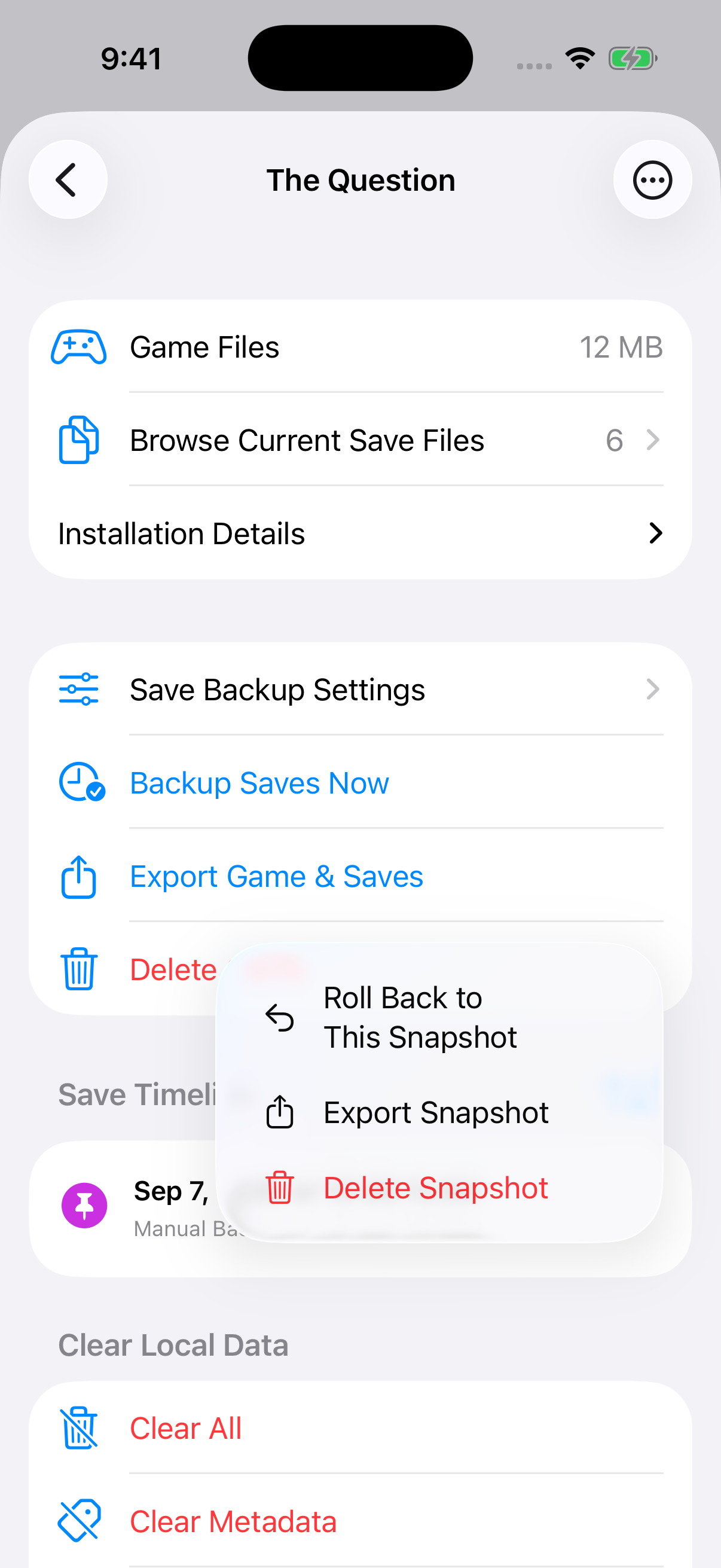
A snapshot's actions in the save timeline.
Automatic snapshots
Automatic snapshots are on by default, keeping 10 per game. On Game Startup takes one before launch; On App Opening · Once a Day checks at most once every 24 hours per game. Empty or unchanged saves are skipped.
Save Snapshot Defaults on the Storage screen sets the trigger and a limit of 1 to 100, or turns automatic snapshots off. A game's Save Snapshot Settings can override these defaults. The oldest automatic snapshots are removed when the limit is exceeded; manual and safety snapshots stay until deleted. A snapshot holds at most 20,000 files and has a maximum total size of 4 GB.
Restore saves
In a game's Save Timeline, open a snapshot's menu and choose Roll Back to This Snapshot. This replaces all current saves with the snapshot's contents, removing files added since that snapshot. The app first keeps the current saves in a Rollback Safety Snapshot, which can undo the restore. All Snapshots & Archives offers the same rollback.
Manage snapshots
The timeline shows each snapshot's date, reason, file count, and size. Sort it by date or size. A snapshot's menu can export a ZIP or delete the snapshot. Deleting a snapshot leaves current saves in place.
Snapshots stay on this device. Export a copy to keep it elsewhere. After a game is deleted, its snapshots remain under All Snapshots & Archives on the Storage screen. A damaged snapshot can only be deleted.
Save editor
The save editor changes a closed game's saved values. Each supported engine has its own editor, described below.
Choose a file
Close the game, then choose Save Editor in the game's details, on the Storage screen, or in a game's Storage → Storage Options. If the list is empty, save in the game once or import a save.
Ren’Py
Select a .save slot or the persistent file, which holds data shared across playthroughs, such as gallery unlocks.
View the save editor
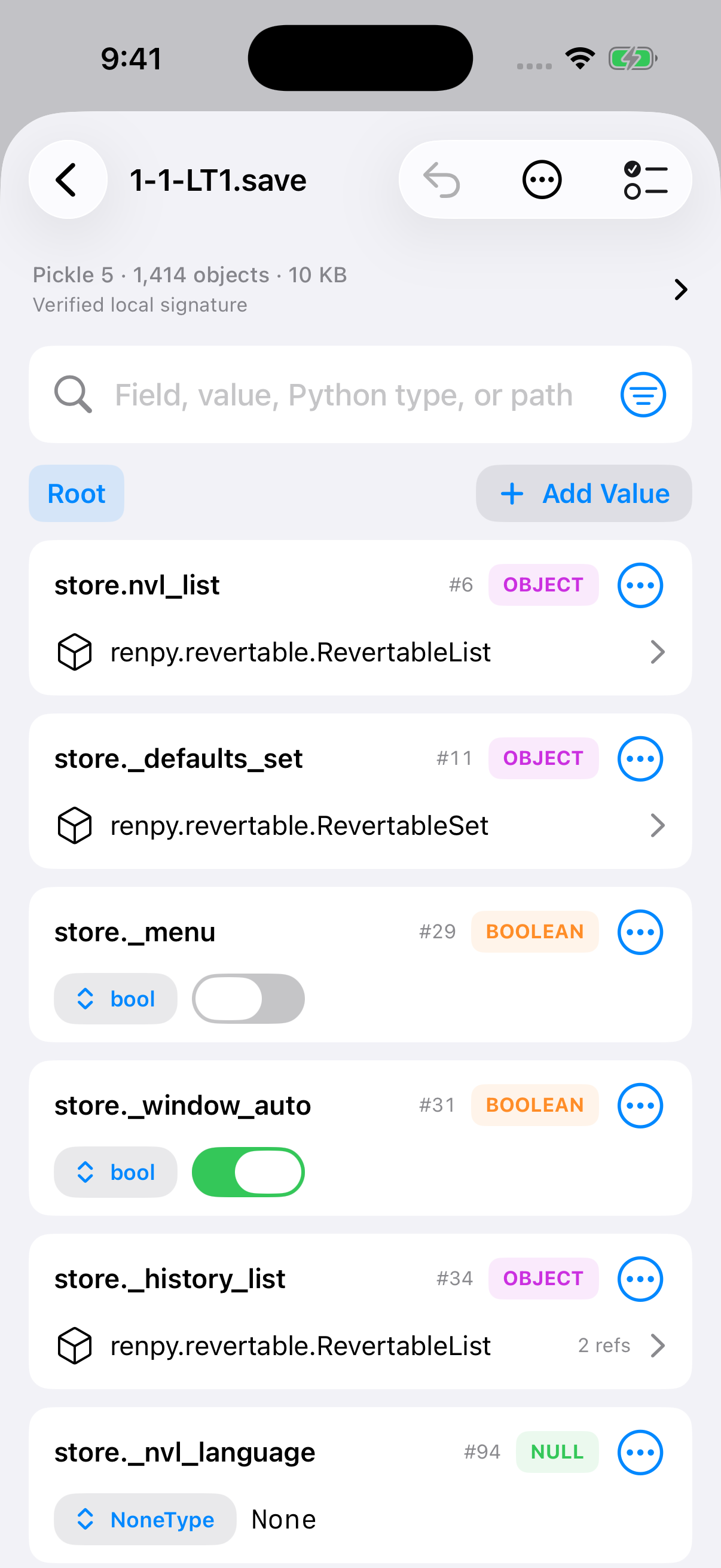
Save fields with their types and values.
Find a value
Search by field name, value, type, or path, and filter by type. View → Include Internal Fields shows engine fields. Open lists and dictionaries to browse their entries; use the path buttons to go back. A field's menu can copy its value, path, or object ID.
View → Complete Pickle Graph opens additional data, including rollback history. With no field selected, the status bar shows the signature status.
Edit values
Edit numbers or text directly, step whole numbers with + and −, or toggle true/false values. Change a field's type from its row or menu. Dictionary keys can be renamed, and entries can be removed. Add Value inserts entries or empty containers. It can also refer to an existing object.
Undo and Redo (⌘Z, ⇧⌘Z) step through pending edits. Discard All Edits clears them.
Apply changes
Open Review Changes, then choose Save Changes (⌘S). The app first creates a Save Edit Safety Snapshot. Restore it from the Save Timeline to undo a saved edit. If you leave with unsaved edits, the app asks whether to save them.
The game may overwrite edited values after loading or using rollback. Invalid values can prevent a save from loading. Some files and fields allow inspection only.
RPG Maker XP / VX / VX Ace
.rxdata |
.rvdata |
.rvdata2 |
Select a save file. Edit gold; each actor's level, HP, MP (XP: SP), EXP and equipment; switches; variables; and item, weapon and armor counts. Names come from the game's database. Add inventory entries, or swipe to remove them. Text and object variables are read-only.
Open Review Changes, then choose Save Changes. The edited file must pass the engine's save check, and a Save Edit Safety Snapshot is created first; restore it from the Save Timeline to undo. Leaving without saving discards edits.
TyranoScript / TyranoBuilder
<projectID>_tyrano_data.sav |
<projectID>_tyrano_auto_save.sav |
<projectID>_tyrano_quick_save.sav |
<projectID>_sf.sav |
Select a save file: every save slot (_tyrano_data), the automatic or quick save, or progress shared across playthroughs (_sf). Find and edit values as described for Ren’Py.
Open Review Changes, then choose Save Changes. A Save Edit Safety Snapshot is created first; restore it from the Save Timeline to undo. If the game changed the file after you opened it, the edit is not saved.
Controllers
ZScripter uses controllers recognized by iOS or iPadOS. Available buttons and actions depend on the controller and game engine.
Supported controllers
| Family | Models |
|---|---|
| PlayStation | DualShock 4 |
| DualSense | |
| DualSense Edge | |
| Xbox | Wireless Controller (Bluetooth, model 1708) |
| Series X|S Wireless Controller | |
| Elite Wireless Controller Series 2 | |
| Adaptive Controller | |
| Nintendo Switch | Pro Controller |
| Joy-Con (single or L/R pair) | |
| MFi and mobile | Backbone One (iPhone-compatible models) |
| Other MFi gamepads |
Other controllers can work when iOS or iPadOS recognizes them as gamepads. Compatibility and available buttons depend on system and controller firmware versions.
Connect a controller
Pair the controller through Bluetooth or connect it by cable; ZScripter sets its player light. In app Settings, open Controls, choose an engine, then open Hardware Controller. A game's Manage Controls opens the same page. With several controllers connected, choose one under Controller. With a controller connected, the diagram shows live input in green and dims unavailable controls. You can configure a preview layout without a controller.
View controller settings
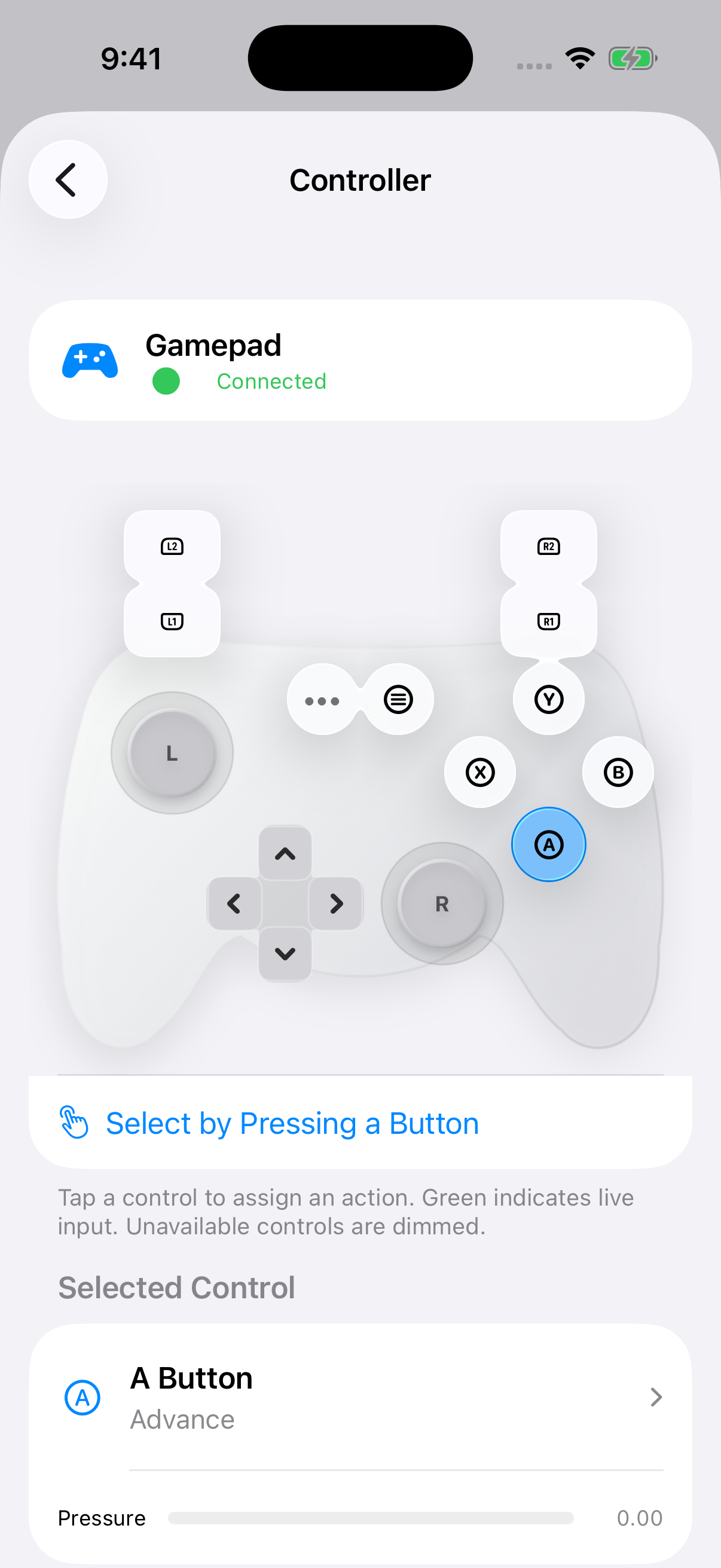
The controller diagram and the selected button's assignment.
Assign buttons
Tap a control in the diagram, then choose a game action, mouse input, or Keyboard Key or Shortcut under Selected Control. All Controls lists the available bindings. Select by Pressing a Button lets you choose a control using the controller itself. Controls Reserved by the System cannot be assigned. Pro Controller and paired Joy-Con follow their printed labels, with A on the right.
Changes save automatically and apply to all games using that engine. Touch control layouts have separate settings.
Game Input
For Ren'Py, Game Input chooses the mode. Native Gamepad uses a compatible game's own controller bindings. Older runtimes fall back to your saved custom bindings. Switch to Custom Bindings to assign game actions or use a stick as a mouse.
For RPG Maker XP, VX and VX Ace, Native Gamepad uses the game's own controller bindings; Menu still opens ZScripter's quick menu. Custom Bindings map RPG Maker actions, keys and mouse input.
Artemis, CatSystem2, KiriKiri, ONScripter, RealLive, RPG Maker MV/MZ and TyranoScript use Custom Bindings.
Adjust sticks and triggers
Sticks & Sensitivity lets each stick act as direction buttons, a mouse cursor, or scrolling input. A stick can also be turned off. Dead zone, speed, and response curve apply to both sticks; increase the dead zone to reduce drift. Horizontal and vertical movement can be inverted.
Trigger Press Point sets how far a trigger must travel; Advanced sets the Direction Press and Release Points for sticks. Direction buttons can repeat while held, with adjustable delay and interval. Controller Details lists the buttons, axes, and haptics iOS reports. Restore Controller Defaults resets every controller setting for the selected engine.
Translation
Live translation is a beta feature for Ren'Py games. It translates dialogue and menu text. Words drawn into images stay unchanged. It is unavailable in Ren'Py Safe Mode.
1) Choose a provider
Provider & API key


Open Settings → Translation. Choose Apple for on-device translation, or Google Gemini, OpenAI, OpenRouter, DeepSeek, or Local LLM. Cloud providers need your API key. It saves when you finish editing and stays in this device's Keychain. Local LLM connects to LM Studio or another OpenAI-compatible server. Enter its Server URL using your computer's LAN address; the API key is optional. Use Discover models and Test connection.
Choose and test a model




Choose the model used for cloud translation. Check the model's capabilities and pricing. Find and add another model offered by the provider. Send a test request to check the key and model; provider charges may apply.
2) Enable translation for a game
Enable translation



Open the game's details, then Translation under Game Settings. Turn translation on for this game. LLM translation asks permission once for all providers and games on this device; Revoke LLM Translation Permission withdraws it. Use the app's provider and model. Turn off to choose them for this game.
Languages & display



Choose the language the game is written in. Choose the language you want to read. Original keeps the source; Translated replaces it; Compare shows both.
Translate ahead


Prepare upcoming dialogue while you read; cloud usage can increase. For Apple translation, choose how many lines to prepare (1–50).
3) Adjust while playing
Provider & display while playing



Open Runtime Settings from the control strip, then Translation. Switch this game's provider, or return to Use App Settings. Switch between Original, Translated, and Compare without leaving the game. The Compare panel can be moved and resized.
API key, model & style




Expand to edit cloud credentials, model, and writing style. Save an edited key immediately; finishing editing also saves it. Faithful stays close to the source; Natural reads smoothly; Literary uses a more literary tone. Add preferred names, terminology, or tone for cloud translations. Apply the model and instructions to this game.
Cache & offline models


Remove this game's cached translations. Saves and language settings are kept. On a physical device with iOS 18 or later, Download Language Models prepares both languages for offline use. Refresh Model Status checks readiness.
Prepared Translation
| RealLive |
| Ren’Py |
| RPG Maker MV |
| RPG Maker XP / VX / VX Ace |
In a game's details, open Prepared Translation under Game Settings. Scan Game extracts dialogue, choices, names and interface text; Translate Game translates it with Apple or your provider. Review lines in the Translation Editor, then Build & Attach to Game and turn on Use Translation in Game. Installed game files are not changed. Export the translated game, patch files or a translation project; import JSON as edits or machine translations. Rescan and rebuild after the game changes.
Ren'Py adds a translation language selected when the game starts. RPG Maker MV adds a translation layer to Local Updates & Patches. RealLive replaces the scenario text. RPG Maker XP, VX and VX Ace replace database and map text; names already stored in a save stay in the original language.
Metadata
Import metadata and artwork from VNDB, IGDB, or SteamGridDB.
1) Choose a source
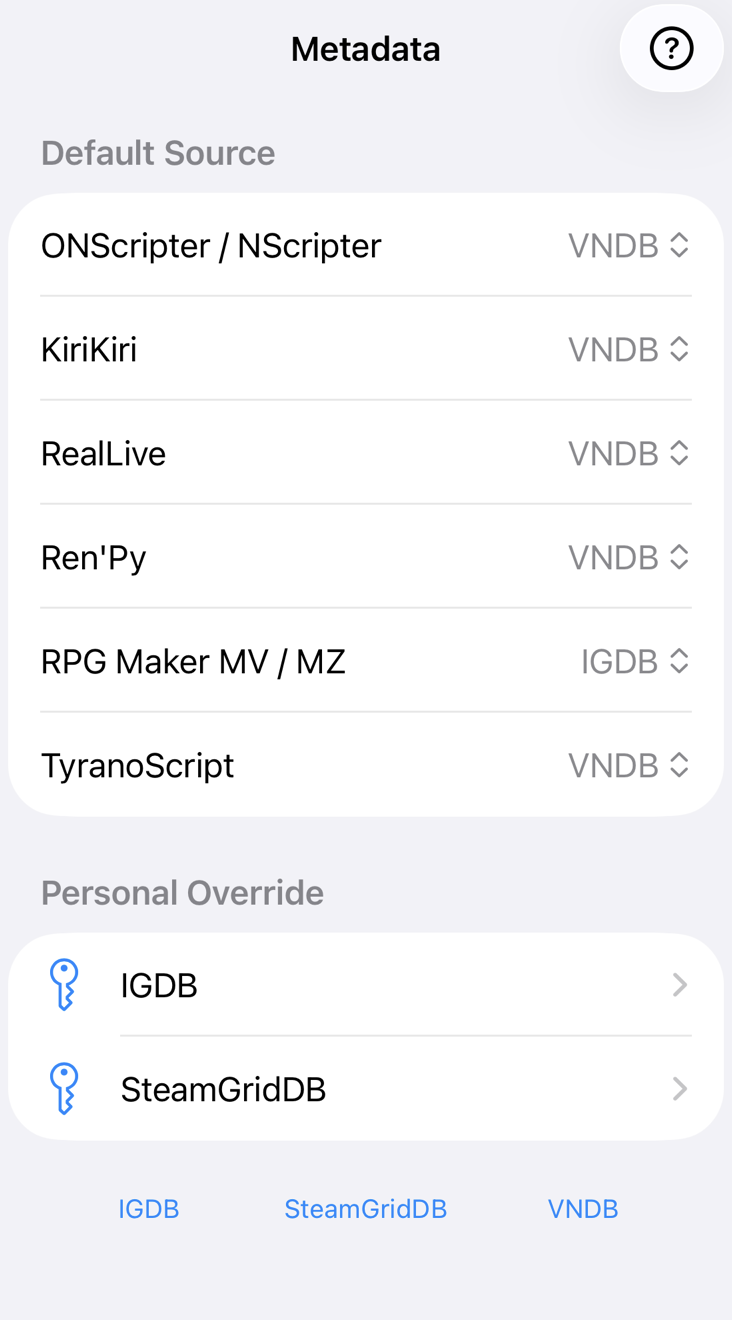
Settings → Metadata → choose a default for each engine. RPG Maker starts with IGDB; other engines start with VNDB, which needs no key.
2) Add your keys (optional)
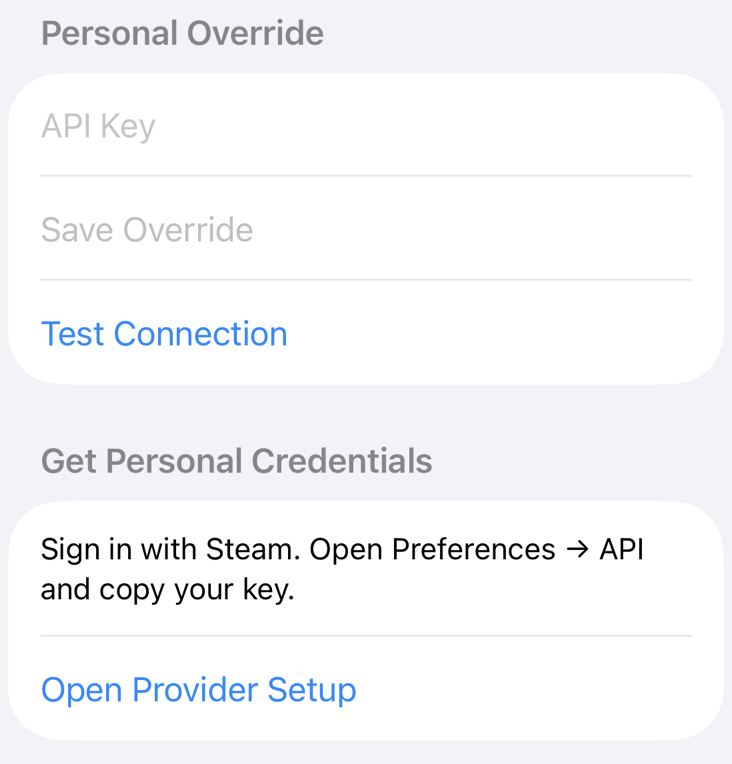
IGDB and SteamGridDB offer a Personal Override. Enter your keys, check them with Test Connection, then Save Override. Remove Override restores the built-in service.
IGDB
Twitch Developer Console → Register Application → Confidential (redirect: https://localhost). In Manage, copy the Client ID and create a New Secret.
SteamGridDB
Sign in with Steam. Open Preferences → API and copy your key.
3) Find a game
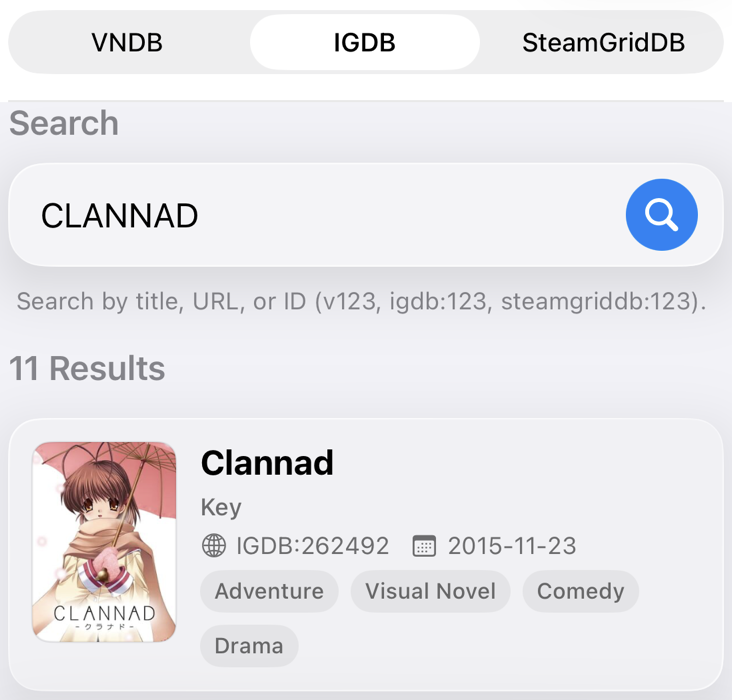
Game Details → Edit → Import from Web opens the engine's default provider; Manual Edit lets you change details yourself. Search by title, URL, or ID. Use Source to switch providers. After an import, ZScripter can also offer metadata; Do not ask again turns that off.
4) Choose artwork
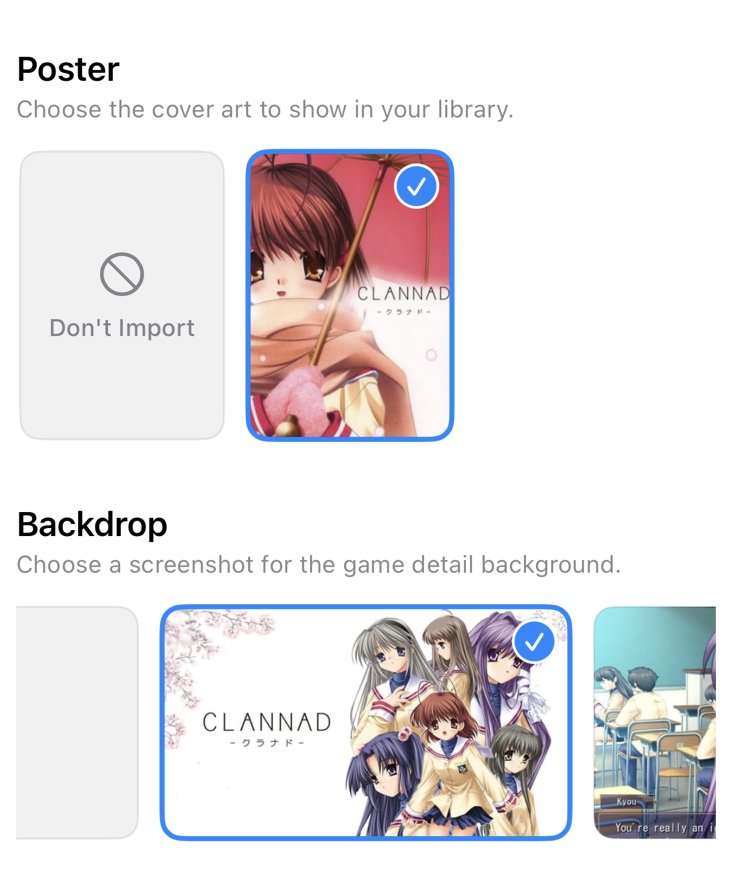
Choose a poster and backdrop, then Import. Don't Import keeps existing artwork. Disable Import Text Metadata to keep your details.
Patches
RPG Maker MV / MZ
1) Open Local Updates & Patches
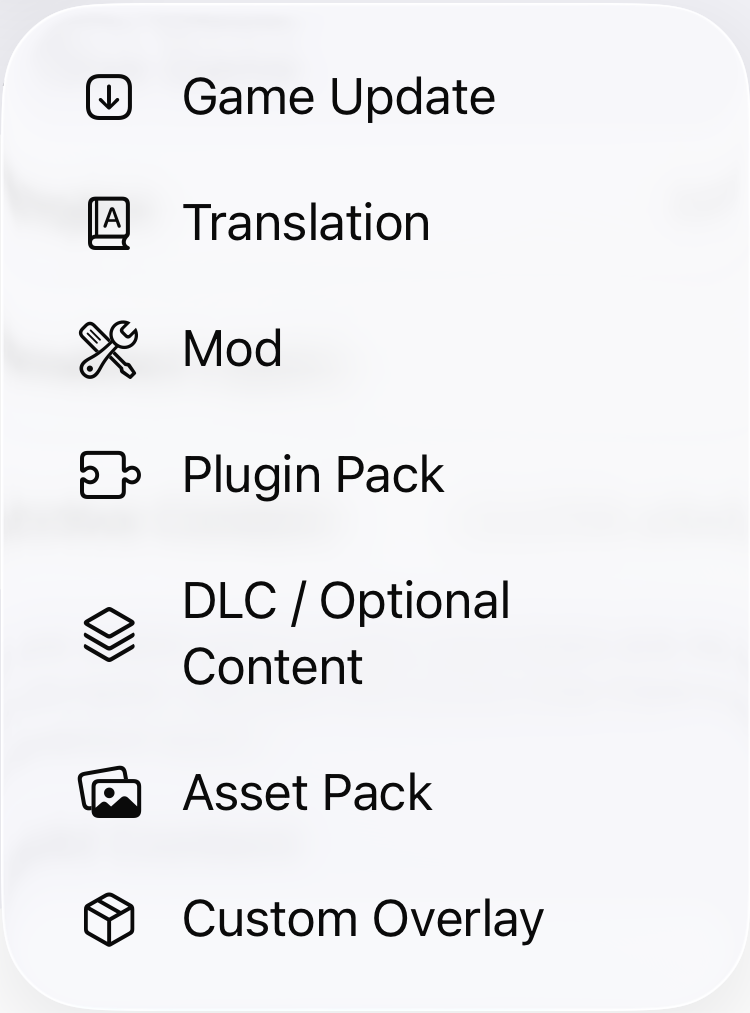
In game details, open Local Updates & Patches. Tap Apply Local Update or Patch and choose a type, then select the patch folder or archive.
2) Enable and order patches
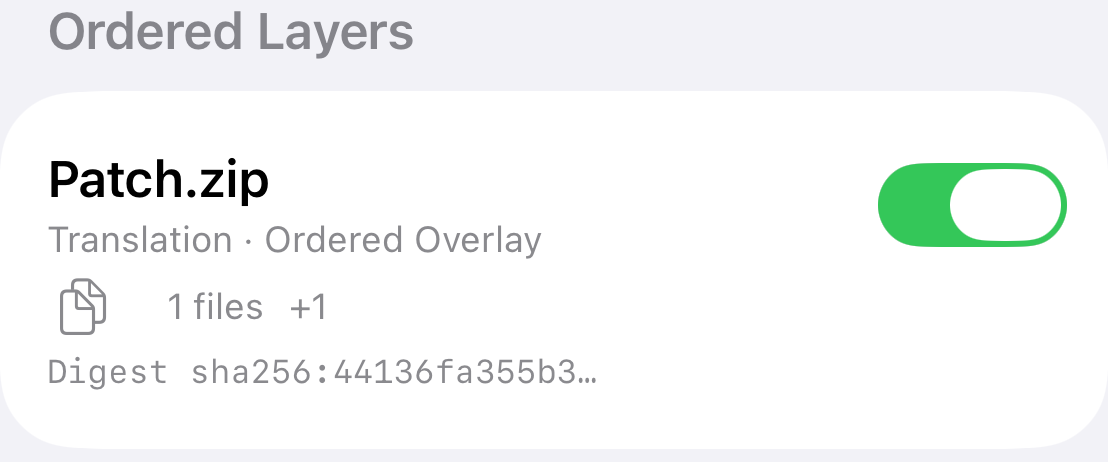
Use the switch to enable a patch. Use Edit or the patch menu to reorder; later patches win when files overlap. Changes rebuild the game. Rollback restores an earlier snapshot.
Import formats
| Extracted folder | LZH |
| ZIP | TAR |
| 7z | TAR + gzip |
| RAR | TAR + bzip2 |
| LHA | TAR + xz |
Package contents
Keep game-relative paths:
data/… |
js/plugins/… |
img/… |
audio/… |
Replacement game files: JSON data, JavaScript plug-ins, images and audio. For MTool dictionaries, choose MTool Translation (JSON).
Optional zs-content-layer.json or manifest.json: the deletes field lists relative file paths to remove.
MTool Translation (JSON)
Supports RPG Maker MV/MZ. Imported dictionaries translate dialogue, choices, names, menus and plug-in text offline on the next launch.
Import a dictionary
Open game details → Local Updates & Patches → Apply Local Update or Patch → MTool Translation (JSON). Choose a JSON dictionary, or a folder or archive containing dictionaries. Use this type for MTool dictionaries; use Translation for replacement game files.
Dictionary format
Use a JSON object whose keys are original text and whose values are translations. Empty or null translations keep the original text. The package must contain at least one translation. Limits: 64 MB and 500,000 entries. Scripts and images in dictionary packages are not installed.
Enable and order dictionaries
Use the layer switch to enable or disable a dictionary. Use Edit or the layer menu to reorder dictionaries; enabled dictionaries later in the order take precedence for matching original text. Relaunch the game to apply changes.
KiriKiri
1) Import a patch
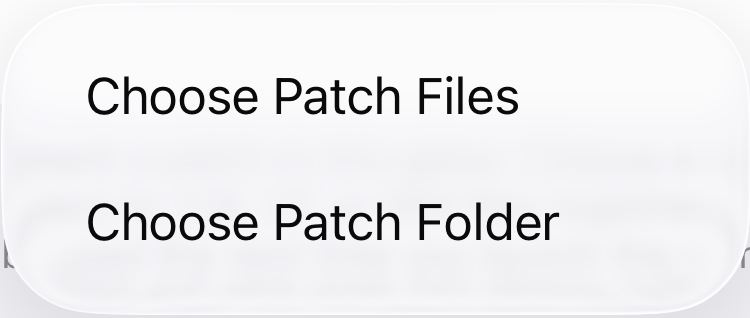
Open Patches → Import Patch and select a ZIP, folder, or TJS, CF, KSC, or XP3 files. Turn off Enable Patches to install patches for later.
2) Check Attached Patches
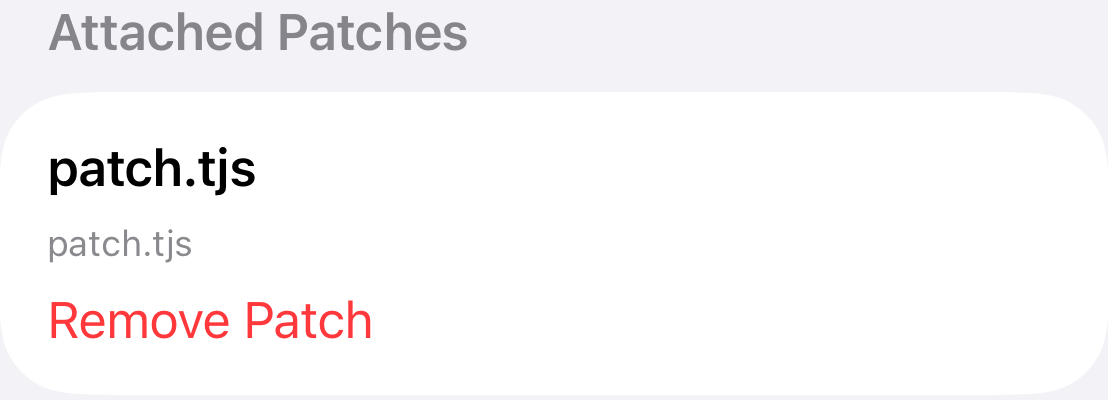
Enable Patches controls all patches. Choose individual files below; those choices are kept while patches are off. Changes apply on the next launch. Delete Patch removes only the imported copy; your game and saves are kept.
Import formats
| Extracted folder | .ksc |
| ZIP | .xp3 |
.tjs | krz_xp3conv.key |
.cf |
Other files in a selected folder or ZIP are skipped.
Compatibility patch packages can also contain these catalog resources:
Patch Bundle Files
.tjs |
.xp3 |
.cf |
.key |
.cfg |
.ksc |
.zip |
.7z |
Plug-in Request Files
*.dll |
plugin-catalog/catalog.json |
TyranoScript / TyranoBuilder
1) Open Local Updates & Patches
In game details, open Local Updates & Patches. Tap Apply Local Update or Patch and choose a type, then select the patch folder or archive.
2) Enable and order patches
Use the switch to enable a patch. Use Edit or the patch menu to reorder; later patches win when files overlap. Changes rebuild the game. Rollback restores an earlier snapshot.
Import formats
| Extracted folder | LZH |
| ZIP | TAR |
| 7z | TAR + gzip |
| RAR | TAR + bzip2 |
| LHA | TAR + xz |
Package contents
Keep game-relative paths:
data/scenario/… |
data/system/… |
data/others/plugin/… |
data/bgimage/… |
data/bgm/… |
tyrano/… |
Replacement game files: KAG scenarios, Config.tjs, plug-ins, images, audio and video.
Optional zs-content-layer.json or manifest.json: the deletes field lists relative file paths to remove.